
Configuration and API access
Developers must add the NothingKey meta-data within the <application> tag in the AndroidManifest.xml file of their application. If your application targets Android 16 or later, Nothing removes the API key restriction, but you should still keep the NothingKey meta-data in your manifest to avoid stability issues or compatibility conflicts across different system versions. For the debug phase, use a test key in the AndroidManifest.xml instead of the true API key. If you use the test key, the system will automatically disable debugging mode after 48 hours to prevent misuse of the SDK. You must also include the com.nothing.ketchum.permission.ENABLE permission in the manifest. For developers building Glyph Toys, the manifest must also include com.nothing.glyph.toy.name for the display name and com.nothing.glyph.toy.image for a circular preview icon. The package name for this integration is com.nothing.ketchum. You can also set com.nothing.glyph.toy.aod_support to 1 to enable AOD support for devices like the Phone (4a) Pro.
SDK lifecycle and control
The Glyph SDK operates through a system proxy service. You must call GlyphManager.init() at the beginning of your application to bind the service, and this is recommended within the onCreate method. Before you use the SDK, you must call register() to grant permission, or the application fails. You can also use register(String targetDevice) to verify authorization and mark the adapted device. For every use of the Glyph Interface, you must call openSession() after onServiceConnected() succeeds. You must call closeSession() when you finish to release resources. Developers can obtain the manager instance via GlyphManager.getInstance(Context).
| Method | Function |
|---|---|
buildPeriod(int period) |
Sets the duration the GlyphFrame stays on |
buildCycles(int cycles) |
Sets the number of cycles for the GlyphFrame |
buildInterval(int interval) |
Sets the interval between cycles |
buildChannel(int channel) |
Sets the specific Glyph to use |
toggle(GlyphFrame frame) |
Enables or disables the set channels |
animate(GlyphFrame frame) |
Runs a breathing animation |
displayProgress(GlyphFrame frame, int progress) |
Shows progress on C1 or D1 |
You can use the GlyphFrame.Builder to create custom patterns. The builder allows you to set the duration in milliseconds using buildPeriod() or define the number of cycles with buildCycles(). After building a frame, you call build() to create the instance. You can also set the interval between cycles with buildInterval(). The getPeriod(), getCycles(), and getInterval() methods help you retrieve these specific parameters from a GlyphFrame. You can also use buildChannel?() to quickly set a zone of Glyphs to be used. The getChannel() method retrieves the array of Glyph channels included in the GlyphFrame.
| Method | Target Device |
|---|---|
is23111() |
Phone (2a) |
is23113() |
Phone (2a) Plus |
is24111() |
Phone (3a) and Phone (3a) Pro |
is25111() |
Phone (4a) |
Hardware compatibility and limitations
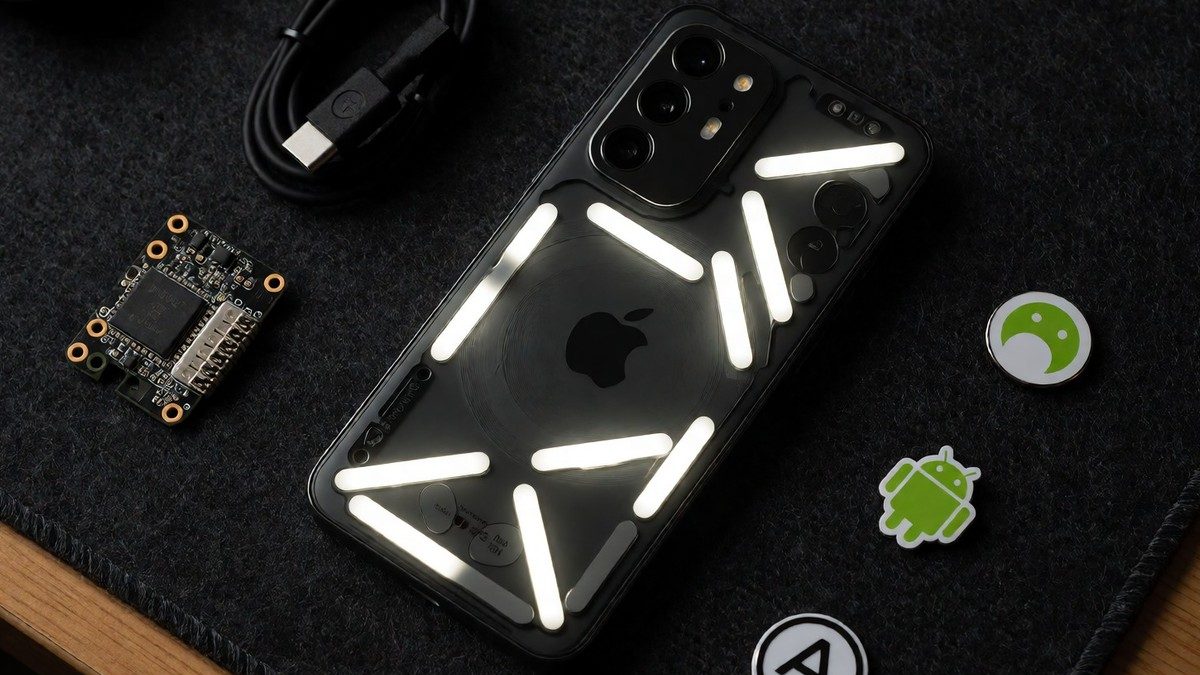
Hardware capabilities change with each device. The SDK works only on Nothing devices running Android 14 or newer. The Phone (1) provides 12 distinct LED zones, whereas the Phone (2) expands this to 33 programmable areas. For the Phone (3), the matrix side length is 25, while the Phone (4a) Pro utilizes a 13×13 matrix. You should remember that the Phone (4a) Pro is AOD-only.
The software allows for specific visual outputs. You can use displayProgress() to show a progress value on the C1 or D1 channels. On Phone (1), this method is limited to the D1 channel. You can also use displayProgressAndToggle() to toggle all Glyphs except C1 or D1 while showing progress. Advanced users can implement features like scrolling text, which requires setting brightness from 0 to 255 and scroll speeds between 10 ms and 200 ms. You can also configure custom content like text, symbols, or Emojis. Will the developers ever release a similar SDK for the Phone 2? The Phone (3) can register as DEVICE_23112, while the Phone (4a) Pro registers as DEVICE_25111p. Some developers report that if their application remains in the foreground, the built-in music visualization feature on the device stops working entirely, which requires a full device reboot to fix.