
I find the native essential notification settings on the Nothing Phone 3 somewhat restrictive. To enable them, follow these steps:
- Open Phone Settings.
- Select Glyph Interface Settings.
- Click Add Essential Notification.
- Select an app, a notification source, or a specific notification type.
The system shows apps with the most recent notifications by default, though you can use the search icon or the most recent toggle to find specific apps. You can set only certain notification types, such as WhatsApp group notifications or calendar tasks, as essential. However, the native software prevents you from selecting specific contact messages for WhatsApp or Instagram as essential. I find it annoying that the top right corner Glyph light turns off as soon as you unlock the phone. This behavior means the light does not stay active to remind you of an unread message until you interact with the screen. When you set an essential notification for any app or contact, the top corner Glyph light stays on to indicate an unread important notification. You already know the Glyph interface provides visual cues, so look at these specific settings to fix your priority list.
Advanced control via Glyphify
The Glyphify app provides the advanced control that the stock Nothing OS lacks. I use it to assign specific Glyph zones to certain contacts, apps, chats, or keywords. You can pick from multiple animation styles and create time or day-based profiles. This app also tracks app progress through Glyphs, so you watch your download, upload, song playback, or timer progress animate in real time.
| Phone 3 Specific Tool | Use Case |
|---|---|
| Glyph Dial | Call favorite contacts directly from the Matrix |
| Glyph Pet | Nurture a pixel companion in the Matrix |
| Glyph Minimap | Assign icons to saved locations |
| Glyph Weather | Monitor temperature, humidity, and wind |
You can also use the Automatic Composer to convert mp3 or wav tracks into Glyph-synced ringtones. The app also includes a charging meter to monitor battery levels even when the device is not plugged in, and you can pick from multiple animations to play when you put the phone on charge. You can assign any Glyph zone to specific contacts, apps, chats or keywords and pick from multiple animation styles to create time and day-based profiles with full control over every aspect of your Essential notifications. This app is trusted by over 25,000 Nothing Phone users. Will Nothing eventually release an official update to address the notification dismissal issues found in the native settings?
Community tools for the Matrix
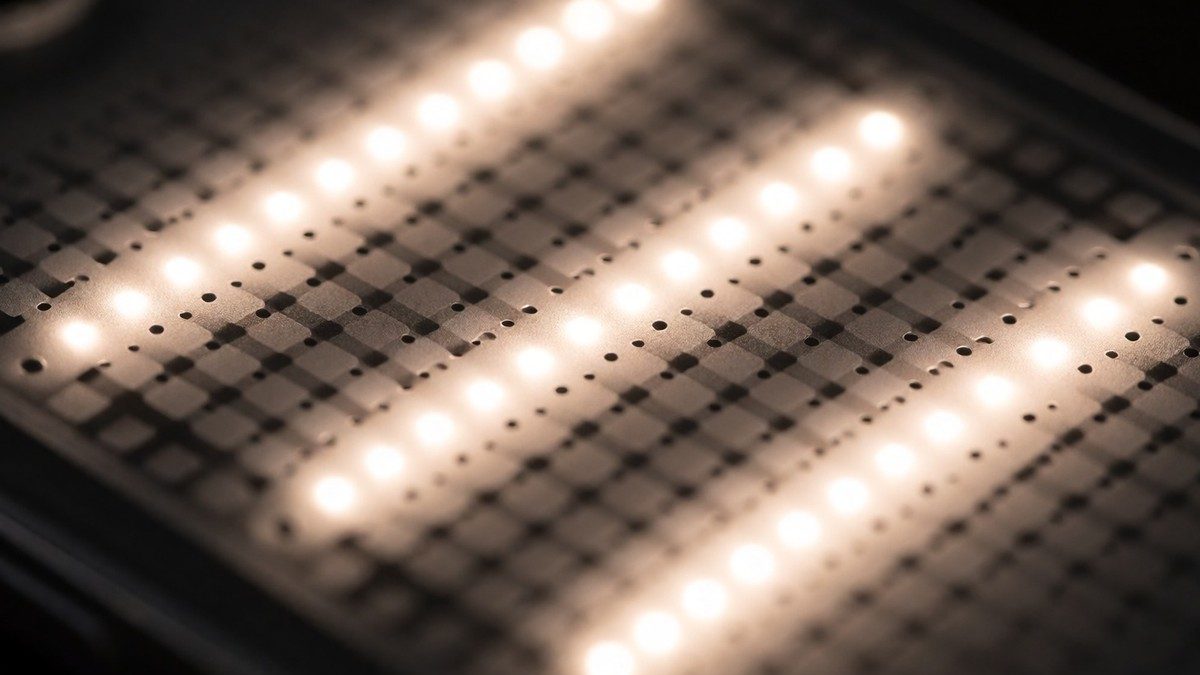
Community developers provide alternatives for those who want more from the 489 LEDs in the Glyph Matrix. Tobi Fasanok created Glyph Matrix Notifications and Glyph Matrix Calls because the native essential notification rules often fail to work for incoming calls. His apps help ensure notifications remain visible until you dismiss them or open the phone. Other community projects include 404+ for Matrix control and Backlit, which provides a toy pack with clock faces, music bars, a charging sprout, and a sand timer.
The Glyph Matrix is a monochrome display that shows caller ID and pixelated avatars when people message you. You can cycle through the Glyph Toys toolkit by tapping the Glyph Button on the rear of the handset. Long-pressing this button will eventually allow you to check caller ID via an OTA update. I find the community apps necessary because the native options do not let you use the matrix more often, such as when you simply open the phone. You can also find games like Glyph Snake, Glyph Pong, or Glyph Catch. These apps let you use the 489 individually firing LEDs to show information or play games.