
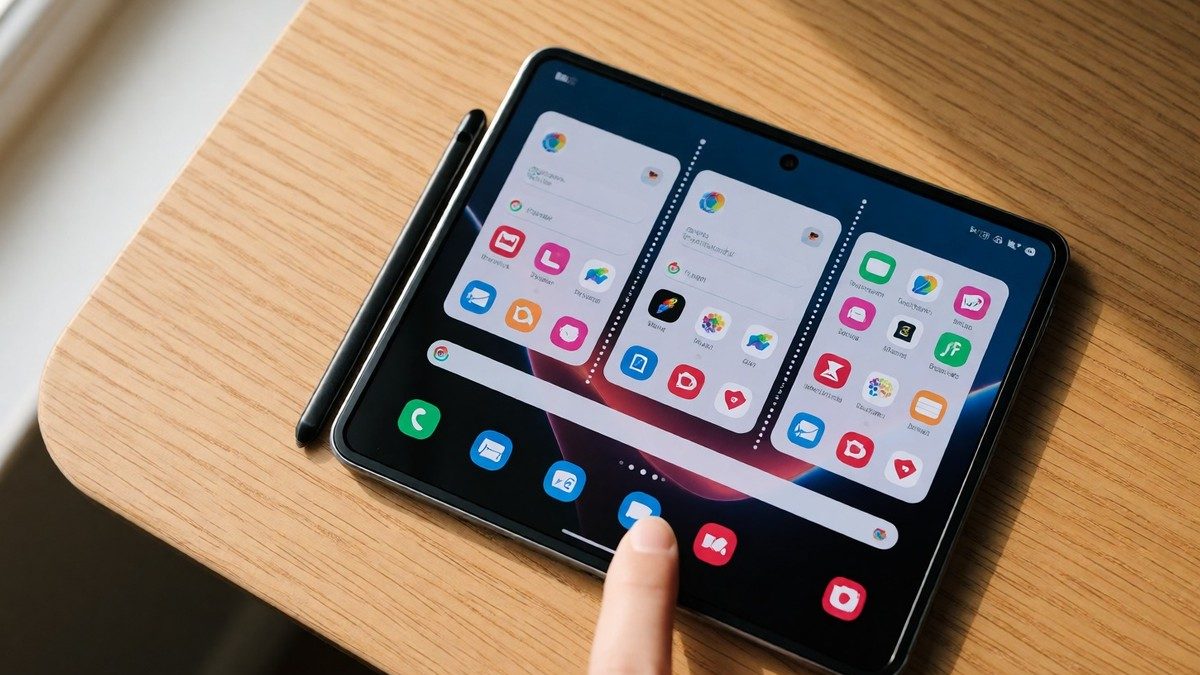
The Galaxy Z Fold 7 is the slimmest and lightest foldable phone ever made, opening into a large infinity flex window that supports up to three apps side by side. This hardware design enables ultra-smooth multitasking and fast app switching, which are essential for productivity on a portable device. You do not need to memorize complex codes; simple physical movements replace menu diving. The system relies on specific finger swipes and drag-and-drop actions to manage windows. Mastering these inputs turns the device into a genuine workflow powerhouse rather than just an expensive status symbol.
Split screen shortcuts
To access split screen quickly, go to Settings > Advanced features > Multi window and enable the toggle for "Swipe for split screen." Once active, swipe up with two fingers from the bottom of your screen while using an app to open the second application selector. This gesture eliminates the need to visit the Recents page, tap the app icon, and select split screen from a menu every single time. For pop-up view, enable "Swipe for pop-up view" in the same settings menu. Then, swipe inwards from either of the top corners to launch an app in a floating bubble that minimizes when you interact with the background. These gestures are faster than standard navigation but require practice to execute without accidentally triggering other actions. If you want to save a specific combination, create an App pair. Swipe left to open the Edge panel, then touch and hold your first desired app and drag it into the top portion of the screen. Open the Edge panel again and drag a second app into the bottom portion. Tap the dotted divider between the two windows to reveal options. Tap the "Add to app pair" icon, which may display as a plus sign or a star, to save the group. On the Z Fold 7, you can add a third app to this pair by dragging it into your preferred position before saving. This three-app capability is exclusive to the Z Fold series models including the Z Fold 2 through Z Fold 8 Ultra and the Z TriFold.
Taskbar and edge panel management
The taskbar at the bottom of the screen gives you constant access to favorite apps. To open an app in split view directly from the taskbar, drag and drop its icon onto the main display area. As you drag, a box highlights the space the new app will occupy. You can place two apps in split-screen view or drag a third app onto the display to use three simultaneously. Three apps on the screen get cramped even with the large display, so use this mode only when necessary. To hide the taskbar and reclaim screen space, long-press on a blank area of the bar until it slides down and off the screen. Bring it back by long-pressing on the area near the bottom where it normally resides. It may take a few tries to get this second gesture right, but muscle memory develops quickly. You can also disable the taskbar entirely by going to Settings > Display > Taskbar and sliding the switch to Off. For more advanced control, use the Apps edge panel to store your saved app pairs alongside your most used apps. This setup lets you launch complex workflows instantly with one tap. The Clipboard edge panel stores recently copied texts and images, letting you paste items by long-pressing and dragging them into any text field. The Tasks panel holds up to 12 app shortcuts, such as taking screenshots or setting timers, keeping common actions one tap away instead of buried in menus. Do these gestures work better than mouse input?