

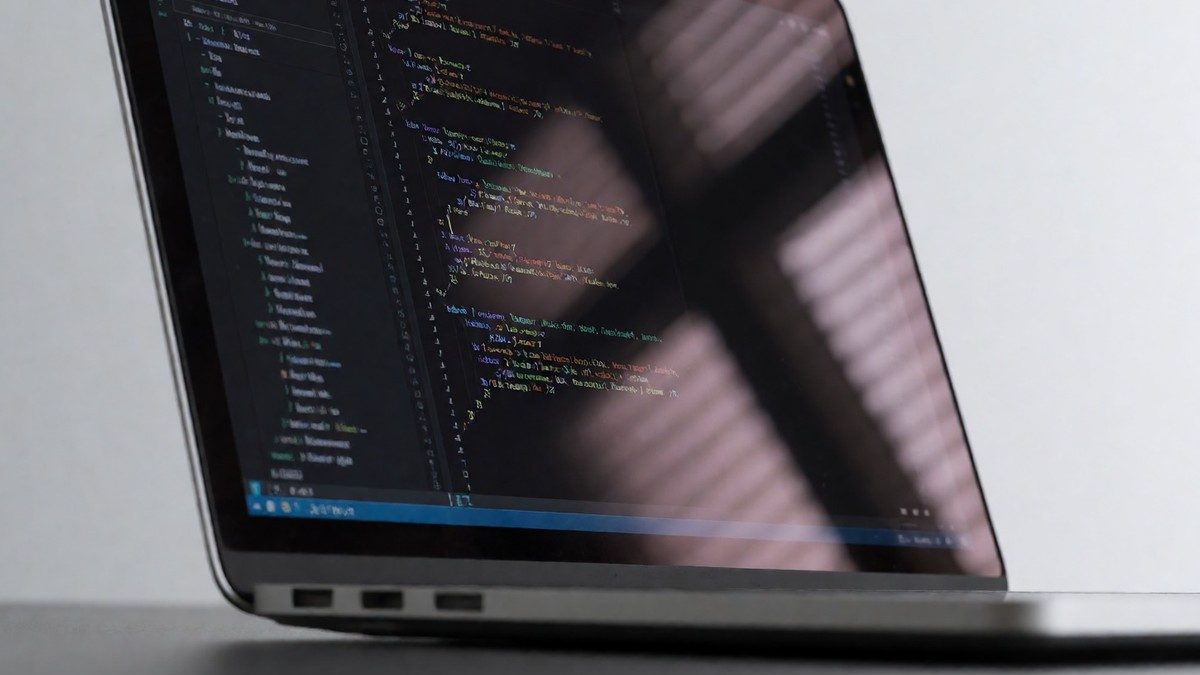
JetBrains Fleet uses a distributed architecture that separates the frontend, backend, workspace, and the Fleet System Daemon (FSD). The frontend handles the user interface, file reading, and basic syntax highlighting. The backend service manages file indexing, code analysis, and advanced searches. The workspace maintains the shared state for multiple frontends. The FSD acts as a bridge to the computer where source code and SDKs reside to handle builds, terminal commands, code execution, and environment management. When developers activate "smart" mode, the tool uses the IntelliJ code engine to provide automatic code completion, navigation to definitions, real-time code quality checks, and quick fixes. This mode also provides code structure improvements. When smart mode is off, the tool acts as a lightweight text editor. Because Fleet separates its components to handle specific tasks like file management and smart code features, the tool provides a different experience for developers who need a simple editor or a fully-fledged IDE for distributed development.
Remote collaboration and polyglot support
Fleet supports remote development scenarios where the environment exists in the cloud or on a remote computer. Users can connect to a remote machine or run the tool inside Docker containers to access specific project configurations or higher resource availability. This setup allows port forwarding from a remote machine so you can test applications directly within the editor. The collaborative environment lets multiple people work in the same coding environment to share terminals, debug code, perform code reviews, and work together. You can join a collaboration session started on another computer or connect to a shared remote development environment. However, the mobile experience is bad because the interface hangs on phones. The tool is a polyglot editor that supports Java, Kotlin, Go, Python, Rust, and JavaScript. This allows you to work on projects needing more resources or different configurations than your local machine can handle. JetBrains plans to add support for PHP, C++, C#, and HTML. Will JetBrains eventually replace all existing IntelliJ IDEs with Fleet?
Integrated development tools
The editor is a polyglot tool that supports several programming languages. This versatility allows developers to manage different technologies within a single environment.
| Language Type | Current Support | Future Support |
|---|---|---|
| Existing | Java, Kotlin, Go, Python, Rust, JavaScript | PHP, C++, C#, HTML |
The JetBrains AI Assistant, powered by the JetBrains AI Service, assists with documentation, Git commits, code suggestions, and terminal tasks. Users chat with the AI or generate commits using advanced language models. You know the drill: just log in with your account to access the free AI preview. This functionality is free during the preview phase for anyone who logs in with a JetBrains Account. The built-in terminal emulator supports PowerShell, Command Prompt, Bash, or Zsh to run Git commands or adjust file permissions. Git remains the primary version control system for managing branches and code differences. You can save changes on your computer and update the central server where teams view the code.
To develop a multiplatform app, users use the Kotlin Multiplatform wizard to select Android, iOS, desktop, or web platforms. After selecting the "Share UI" option for iOS, the wizard produces a project. Once a project opens, Fleet automatically creates run configurations for the targets in the build file. You can manage these configurations by pressing the R shortcut or clicking the Run Configurations icon. For iOS development, users select the iosApp configuration to launch the application on an iPhone simulator. This helps in creating and managing native app components smoothly.
The editor also includes a Goto popup for locating files, code symbols, actions, or settings. You can access this tool via a shortcut or by clicking the Search icon in the top-right corner. To find where a function is used, you use the Usages action with the U shortcut. For debugging, users set breakpoints in files like ContentView.swift or App.kt. When the debugger hits a breakpoint, you can use Step Out or Step Into to move through the code. This allows for debugging between Swift and Kotlin files.