
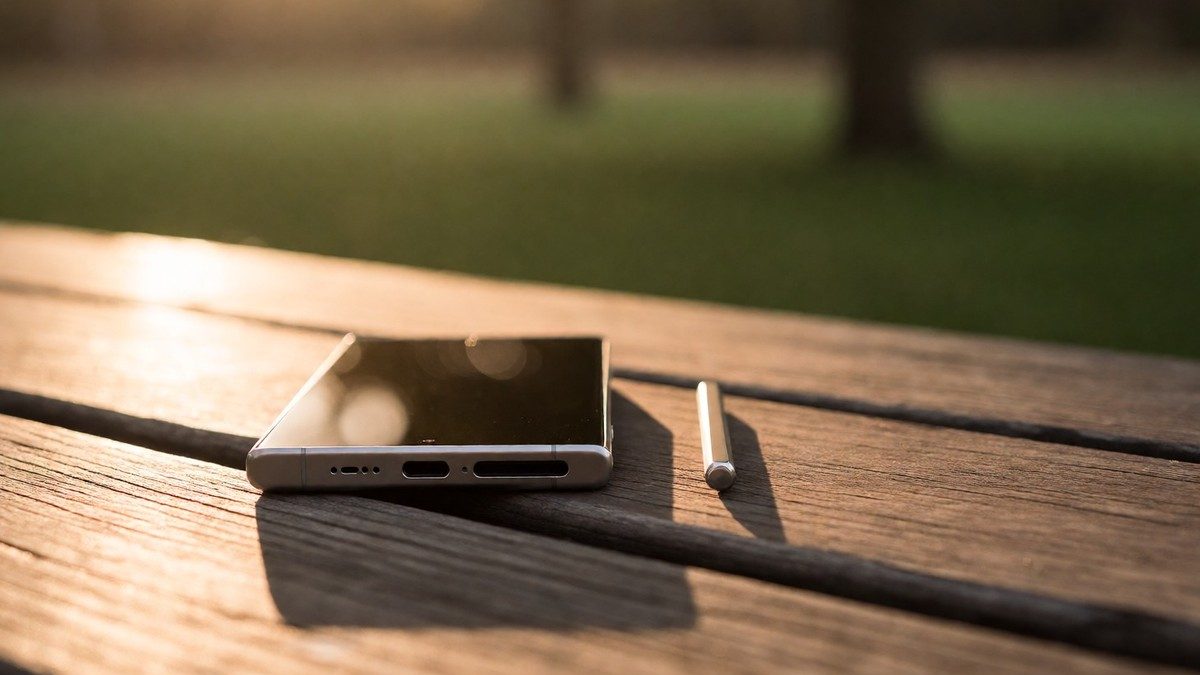
The most critical error users make is assuming the internal S Pen slot remains on the Galaxy S26 Ultra. Rumors from @PandaFlashPro indicate Samsung will remove the digitizer to fit Qi2 magnets, forcing the stylus to become a separate accessory like the S Pen Fold Edition. This shift means you cannot calibrate a pen that no longer fits inside the chassis. If you try to force an older internal unit into a new model, you risk damaging the housing or voiding your warranty. The hardware change dictates how you must store and manage your input tools moving forward.
Hardware shifts and charging changes
Removing the digitizer frees up significant internal space for the new "Qi2 compatible" charging system. Unlike the S25 Ultra, which was only "Qi2 Ready" and required external magnetic cases, the S26 Ultra integrates magnets directly into the body. This allows for 15W wireless charging speeds without extra accessories. The magnets keep the charging coils aligned properly, eliminating the fiddling needed for standard Qi pads. However, this upgrade comes at a cost: the loss of pressure sensitivity and hovering features that made the S Pen superior to simple styluses in phones like the Moto G Stylus. You lose the ability to interact with the screen before touching it.
This trade-off is stark. You gain faster, more stable wireless power but lose the advanced input capabilities that defined the Ultra line for a decade. The removal of Bluetooth support in the previous S25 Ultra already signaled a decline in utility, as barely anyone used those remote functions. Now, the core interaction model changes entirely. Users who relied on precise pressure data for digital art or detailed note-taking face a major workflow disruption. The phone becomes thinner, but the creative tool becomes less capable.
| Feature | S25 Ultra | S26 Ultra (Rumored) |
|---|---|---|
| Wireless Charging | Qi2 Ready (case required) | Qi2 Compatible (built-in magnets) |
| Charging Speed | Standard Qi rates | 15W |
| S Pen Storage | Internal Slot | Separate Accessory |
| Digitizer | Present | Removed |
| Hovering Support | Yes | No |
Calibration pitfalls and user habits
If you are upgrading from a previous Ultra, do not attempt to run old calibration scripts designed for internal pens. The software expects a different hardware configuration when the digitizer is absent. Trying to map pressure levels on a non-digitized stylus results in erratic cursor movement and inconsistent ink thickness. You must reset your input preferences in the settings menu after switching to the new accessory. Ignoring this step leads to frustration during daily use.
The transition also affects how you handle updates. Carrier-specific release schedules mean your device may receive firmware patches at different times than others. These updates often include driver adjustments for the new stylus form factor. Waiting for a generic update rather than checking for specific S Pen driver fixes can leave you with suboptimal performance. You should verify that your Creative Studio apps recognize the new input method immediately upon installation. If the hexagonal S Pen does not register correctly, check the app permissions and restart the device.
Do you know if your current carrier has released the specific driver patch for the new S Pen? The answer varies by region and model, so checking your local community forums is essential. Do not assume your settings carry over automatically. The physical separation of the pen changes the entire setup process. Treat the new accessory as a distinct peripheral rather than an integrated component. This mindset prevents most common configuration errors.